To clean dust from a computer, shut it down and unplug all cables. Use a can of compressed air to blow out dust from the vents and crevices.
For a more detailed and thorough cleaning, open up the computer and use a soft-bristled brush and rubbing alcohol to clean the components. Finally, reconnect all cables and turn the computer back on. A clean computer is crucial for optimal performance and longevity.
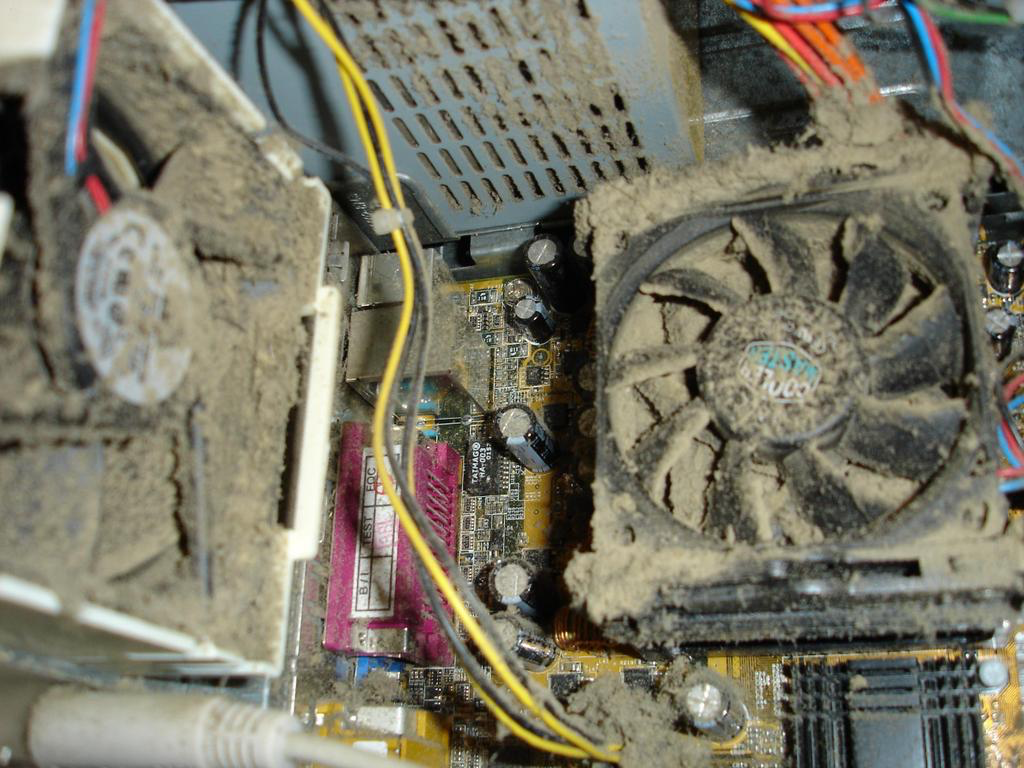
Over time, dust and debris can accumulate inside a computer, blocking air flow and causing the components to overheat. This can lead to crashes, malfunctions, and even permanent damage. Regular cleaning of your computer can prevent these issues and extend its lifespan.
In this article, we’ll show you step-by-step how to clean dust from your computer, using both compressed air and manual cleaning methods.
Credit: mygeeknc.com
Quick Navigation
Step 1: Shut Down Your Computer
To clean the dust from your computer, you need to shut it down first. This step is crucial to avoid any damage to the system. Once the computer is switched off, unplug it from the power supply. This will also ensure that you don’t get electrocuted while cleaning.
Make sure to use a soft and clean cloth to wipe off the dust from the computer and its accessories. You can also use compressed air to blow off the dust from hard-to-reach places. Try to clean the computer regularly to avoid any dust buildup, which can affect the performance of the system.
Step 2: Gather Cleaning Supplies
To clean dust from your computer, there are several cleaning equipment and tools you can use. The best tools to use are compressed air, microfiber cloths, and a soft-bristled brush. Avoid using paper towels or a vacuum cleaner as they can cause static buildup.
When cleaning, make sure to turn off and unplug your computer. Gently wipe the surface and crevices of your computer and use the compressed air to blow off any remaining dust. Take care not to damage any delicate parts or components.
With regular cleaning, you can keep your computer running smoothly and prolong its lifespan.
Step 3: Cleaning The Computer Inside
To safely open your computer case, first turn off the device and unplug it. Locate the screws or clips holding the case shut, and remove them. Carefully slide or lift the case off. If you’re uncomfortable with this step, consider asking for assistance.
Once the case is open, use a can of compressed air to blow out dust and debris from the internal components. Be gentle and avoid touching any of the delicate pieces. Use a soft-bristled brush to dust off any remaining debris.
Ensure all components are clean before re-attaching the case and plugging the computer back in. With regular cleaning, your computer will perform better and last longer.
Step 4: Cleaning The Computer Outside
Cleaning the external parts of the computer is an important step in the process of cleaning dust from your computer. To clean the keyboard and mouse, use a microfiber cloth to wipe away any dust and debris. Then, use a soft-bristled brush to remove any dirt between the keys.
For harder-to-reach areas, use compressed air to blow out the dust. When cleaning the screen, use a screen cleaning solution and a microfiber cloth to avoid leaving streaks. Don’t forget to wipe down the external casing of the computer with a damp cloth to remove any residual dust.
Step 5: Finishing The Clean-Up
After you have cleaned the inside of your computer, it’s time to reassemble it. Make sure all screws and cables are securely in place before powering them on. A loose component can cause harm or damage to the computer. To check for any issues, run a diagnostic test, and make sure all fans are working.
When the computer starts up, check all the programs and files to ensure everything is running smoothly. Once everything is in order, you can take a breather, knowing that your computer is free of harmful dust particles.
Conclusion
It is essential to clean dust from your computer regularly to ensure its longevity. Neglecting the buildup of dust can lead to overheating, issues with performance, and even permanent damage to the internal components. Fortunately, cleaning dust from your computer is a relatively straightforward process.
Start by unplugging your computer and taking it to a well-ventilated area. Use compressed air or a soft-bristled brush to remove the dust from the exterior, fans, and other areas. Remember, caution and gentleness are essential when handling the delicate components inside your computer.
It is also worth mentioning that prevention is better than cure. You can keep dust from your computer by placing it on a desk, away from the floor, and closing all windows when not in use. Take some time to clean your computer regularly, and you’ll be rewarded with more comfortable use and a longer lifespan.